Quick Troubleshooting
Quick Troubleshooting
The 10 most common issues and their fixes. For deeper diagnostics, use the Concierge assistant (Chat tab) with terminal access enabled.
1. Dashboard won't load
Cause: QUI Core is not running.
Fix: Launch the QUI Core AppImage, or start QUI Core manually.
2. "Concierge Unavailable" error
Cause: QUI Core can't reach the central hub to fetch Concierge configuration.
Fix: Check your internet connection. If the hub is temporarily down, wait a few minutes. See Concierge Not Working for the full checklist.
3. No AI response / empty responses
Cause: No account balance, or authentication tokens expired.
Fix: Check the Billing tab for your balance. If balance is fine, log out and log back in to refresh tokens.
4. SSL certificate error in browser
Cause: QUI Core uses self-signed SSL certificates. Browsers show warnings for these.
Fix: Click "Advanced" → "Proceed" in the browser warning. This is expected for self-signed certs. If certs are missing or expired, regenerate them — see Installation for details.
5. Services showing as offline
Cause: Docker containers stopped or failed to start.
Fix: Check the Services tab in the dashboard for specific service status. Most services restart automatically. If a service stays offline, use the Concierge with terminal access enabled to diagnose and restart it.
6. Trust score too low for auto-login
Cause: Too many failed login attempts reduce your trust score.
Fix: Log in successfully a few times to rebuild trust. Complete CORE Connect for a bonus. See First Login.
7. Terminal commands blocked
Cause: The command isn't in your active preset's allowed list.
Fix: Switch to a preset that includes the command (e.g., Developer for docker commands), or add the command to your manual whitelist in Terminal Settings. See Terminal Access.
8. Characters not responding in Strings
Cause: Qui Anima service is down — all character-based AI requires Anima.
Fix: Check the Services tab for Anima's status. If it's offline, use Concierge with terminal access to restart it.
9. Conversations not loading in Strings
Cause: Memory Service is down — Strings stores all messages there.
Fix: Check the Services tab for Memory's status. If it's offline, use Concierge with terminal access to restart it.
10. Docker builds fail with "no space left"
Cause: Docker images and build cache have accumulated.
Fix: Use Concierge with terminal access to clean up unused Docker resources, or run docker system prune -f in your terminal.
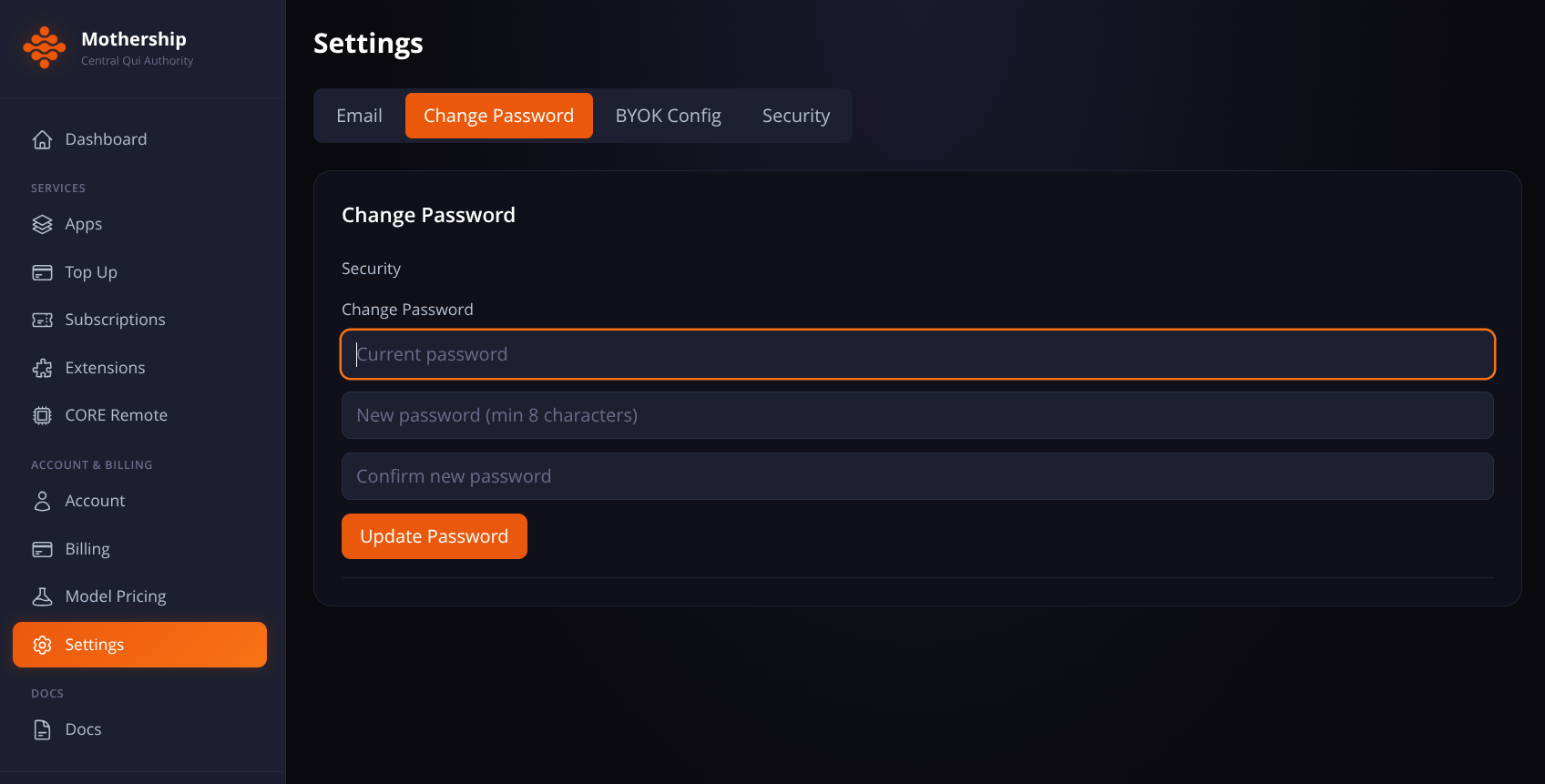
11. Changing password
Login to the Mothership via qui.is.
Go to Settings, Change Password.
Need More Help?
- Use Concierge — open the Chat tab and ask. With terminal access enabled, Concierge can inspect your system and provide specific diagnostics.
- Check the Services tab — shows real-time health status of all services.
