QUI MCP Integrations Setup Guide
This document covers setup instructions for the following QUI integrations and MCP connectors:
- Google OAuth login
- GitHub Personal Access Token
- Slack MCP connector
- Notion MCP connector
- Discord MCP connector
- Google Calendar MCP connector
- Brave Search MCP connector
- WhatsApp / GreenAPI node
- Telegram
General Security Notes
- Treat all API keys, OAuth client secrets, bot tokens, and service account JSON files as secrets.
- Never commit tokens or JSON key files to Git.
- Store production secrets in the appropriate environment variable store or deployment secret manager.
- Prefer short-lived or expiring credentials where possible.
- Rotate any token immediately if it may have been exposed.
1. Google OAuth Login Setup
This enables Google OAuth login for QUI.
1.1 Create OAuth Credentials in Google Cloud Console
- Open the Google Cloud Console:
https://console.cloud.google.com - Create a new project or select the existing production project.
- Go to:
APIs & Services→Credentials→Create Credentials→OAuth client ID - Set the application type:
Web application - Set the name:
QUI.IS Production - Click
Create. - Copy the generated:
client_idclient_secret
Add the authorized redirect URI:
https://qui.is:11000/api/v1/auth/google/callback
Verify that this matches the actual production Nginx routing and the existing configuration referenced in 2FA.md around line 1303.
1.2 Configure the OAuth Consent Screen
This is a one-time setup if it has not already been completed.
- In Google Cloud Console, go to:
APIs & Services→OAuth consent screen - Set the user type:
- Use
Externalunless QUI is managed inside a Google Workspace organization.
- Use
- Fill in the required fields:
- App name
- User support email
- Developer contact email
- App domain:
qui.is - Authorized domains:
qui.is
- During development, add test users.
- For production, publish the consent screen when ready.
Add the following scopes:
userinfo.email
userinfo.profile
1.3 Configure Google OAuth in the Mothership Admin Panel
- Navigate to:
Settings→Authentication - Save the settings.
Verify that:
googleRedirectUri
matches the redirect URI configured in Google Cloud Console.
Paste the Google OAuth client secret:
googleClientSecret = <client_secret from Google Cloud>
The backend will Fernet-encrypt the secret before storing it.
Paste the Google OAuth client ID:
googleClientId = <client_id from Google Cloud>
Set:
googleOAuthEnabled = true
Log in to the admin dashboard:
https://qui.is/admin
Or use the current deployed admin dashboard URL if different.
1.4 Restart / Cache Refresh
After saving the settings, either:
- Restart Mothership, or
- Wait for the 5-minute Redis cache TTL on
auth_settingto expire.
1.5 Verification
Run:
curl https://qui.is/api/v1/auth/google/login -i
Expected result:
HTTP 302 redirect to https://accounts.google.com/o/oauth2/v2/auth?...
Then test in a browser:
- Complete the Google login flow.
- Confirm that the callback succeeds and the user is logged in.
Visit:
https://qui.is/api/v1/auth/google/login
2. GitHub Personal Access Token Setup
Use a GitHub Personal Access Token for GitHub MCP access.
2.1 Recommended Option: Classic Token
Classic tokens are recommended for best compatibility.
- Open GitHub.
- Go to:
Settings→Developer settings→Personal access tokens→Tokens (classic) - Click:
Generate new token (classic)
2.2 Recommended Scopes
Select the following scopes:
repo— full control of private repositories, issues, pull requests, branches, and commitsworkflow— required if the MCP needs to read or trigger GitHub Actionsread:org— allows access to organization repositories and membersread:user— user profile lookupsuser:email— user email lookupsgist— optional; only required for gist toolsnotifications— optional; only required for notification tools
2.3 Expiration Recommendation
Recommended expiration:
90 days
Avoid No expiration unless absolutely necessary. If a non-expiring token leaks, it remains valid until manually revoked.
3. Slack MCP Connector Setup
Slack is suitable for building and testing QUI MCP apps. A free Slack workspace is enough for the core Slack MCP connector tools.
The connector uses Slack Web API functionality such as:
- Listing channels
- Posting messages
- Reading conversation history
- Listing users
- Uploading files
- Adding reactions
3.1 What Works on Slack Free Workspaces
Free Slack workspaces support:
- Creating apps
- Creating bots
- Slash commands
- Bot tokens such as
xoxb-... - User tokens such as
xoxp-... - Events API
- Socket Mode
- OAuth
- Webhooks
- Most Web API methods used by the QUI MCP connector
3.2 Slack Features That Usually Require a Paid Plan
The following features generally require a paid Slack plan and are not required for normal QUI MCP testing:
admin.*API methods- Workspace or user administration APIs
- Enterprise Grid
- SCIM
- Discovery API / eDiscovery
- DLP
- Message retention policies
- Advanced Workflow Builder features
3.3 Free-Tier Gotchas
- Free workspaces cap accessible message history at 90 days. Older messages may still exist, but they cannot be read via API.
- Free workspaces are limited to 10 installed integrations at once.
- Uninstall old test apps as needed.
- Bots may count against seat limits in some edge cases, although normal test bots are usually fine.
3.4 Recommended Slack Testing Setup
- Do not test against a real team workspace unless required.
- Install the app into the throwaway workspace.
Copy the bot token into the MCP Gateway environment as:
SLACK_TOKEN=xoxb-...
Create the app at:
https://api.slack.com/apps
Create a throwaway workspace, for example:
qui-mcp-test.slack.com
3.5 Slack App Setup — Step by Step
Step 1: Create a Test Workspace
Skip this step if you already have a suitable test workspace.
- Sign up with your email.
- You should now be the workspace owner, which is required to install apps.
Name the workspace something like:
qui-mcp-test
Go to:
https://slack.com/get-started
Step 2: Create the Slack App
- Click:
Create New App→From scratch - Select the test workspace.
- Click
Create App.
Set the app name:
QUI MCP Connector
Go to:
https://api.slack.com/apps
Step 3: Configure Bot Token Scopes
Go to:
OAuth & Permissions → Scopes → Bot Token Scopes → Add an OAuth Scope
Add the following scopes:
| Scope | Purpose |
|---|---|
channels:read | List public channels |
channels:history | Read messages in public channels |
groups:read | List private channels the bot is in |
groups:history | Read messages in private channels |
chat:write | Post messages |
users:read | List workspace users |
files:write | Upload files |
reactions:write | Add emoji reactions |
im:write | Optional; send direct messages |
im:history | Optional; read direct message history |
Step 4: Install the App to the Workspace
- On the same
OAuth & Permissionspage, scroll to the top. - Click:
Install to Workspace - Review permissions.
- Click
Allow. - After installation, Slack returns to the
OAuth & Permissionspage.
This is the value for:
SLACK_TOKEN=xoxb-...
Copy the Bot User OAuth Token.It starts with:
xoxb-...
Step 5: Invite the Bot into Channels
The bot cannot read or post in a channel until it has been invited.
In Slack, open the channel and run:
/invite @QUI MCP Connector
Use the actual bot name if different.
Step 6: Optional Events API / Socket Mode
This is only needed if Slack should push events to QUI, such as mentions or incoming messages.
For outbound API calls, the bot token alone is sufficient.
To enable Socket Mode:
- Go to
Socket Mode. - Toggle
Enable Socket Mode.
Save it as:
SLACK_APP_TOKEN=xapp-...
Generate an app-level token with the scope:
connections:write
To enable event subscriptions:
- Go to
Event Subscriptions. - Toggle events on.
Subscribe to bot events such as (with their matching *:history OAuth scopes):
message.channels
app_mention
message.groups
message.im
message.mpim
Step 8: Test Slack
From the gateway, call one of the Slack MCP tools, for example:
slack_list_channels
Or test posting to a channel where the bot has been invited:
slack_post_message
If the response is:
not_in_channel
invite the bot to the channel again.
3.6 Slack Common Gotcha
If you add a new scope after installing the app, you must click:
Reinstall to Workspace
Existing tokens do not automatically receive newly added scopes.
4. Notion MCP Connector Setup
Use a Notion internal integration for the QUI Notion MCP connector.
4.1 Create the Notion Integration
- Click
New integration. - Select the associated workspace.
- Add a logo if desired.
- Click
Save.
Set the name:
QUI MCP Connector
Set type:
Internal
Public is only needed if distributing the integration to other workspaces.
Go to:
https://www.notion.so/profile/integrations
Or use:Settings → Connections → Develop or manage integrations
4.2 Set Notion Integration Capabilities
On the integration's Configuration tab, go to the Capabilities section.
Enable:
Read contentUpdate contentInsert contentRead user information→ chooseWithout emailunless emails are specifically requiredRead comments— optionalInsert comments— optional
Click Save changes.
4.3 Copy the Notion Token
- Go to the
Secretstab orInternal Integration Secretsection. - Click
Show. - Copy the token.
The token may look like either of these:
ntn_...
secret_...
Both formats should work.
4.4 Share Pages and Databases with the Integration
This is the most commonly missed step.
Notion integrations start with zero access. You must explicitly grant the integration access to every page or database it should touch.
For each page or database:
- Open the page in Notion.
- Click the
...menu in the top-right. - Go to:
Connections→Connect to
Select:
QUI MCP Connector
Alternative path:
Share → + Add connections → select QUI MCP Connector
Tip: connect the integration to a top-level parent page, such as:
QUI Sandbox
Then put test pages and databases inside it. Child pages inherit access from the connected parent page.
4.5 Wire Notion into the MCP Gateway
Edit:
Qui_Core_Services/MCP_Gateway/.env
Add:
NOTION_API_KEY=ntn_xxx...
4.6 Test Notion
Call:
notion_search
with an empty query.
Expected result:
- It should return every page and database the integration has access to.
If it returns:
[]
then the integration probably has not been connected to any pages or databases. Repeat the sharing step above.
4.7 Notion Common Gotchas
| Issue | Likely Cause | Fix |
|---|---|---|
object_not_found | Integration is not connected to the page | Reconnect the integration to the page |
| Database query returns nothing | Database itself does not have the connection | Open the database as a full page and add the connection |
| Token regenerated | Env var still uses old token | Update NOTION_API_KEY |
New integration button missing | Workspace requires admin approval | Ask the workspace owner/admin |
5. Discord MCP Connector Setup
Use a Discord bot for the QUI Discord MCP connector.
5.1 Create a Test Discord Server
Skip this if you already have a suitable server.
In Discord desktop or web:
- Click the
+icon in the bottom-left. - Choose:
Create My Own→For me and my friends - You are now the server owner, which is required for bot invites.
Name it:
QUI MCP Test
5.2 Create the Discord Application
- Click
New Application. - Accept the Discord Developer Terms of Service.
- Click
Create.
Name it:
QUI MCP Connector
Go to:
https://discord.com/developers/applications
5.3 Create and Configure the Bot User
- In the left sidebar, go to
Bot. - Confirm that the bot user exists.
- Rename the bot or set an avatar if desired.
- Under
Privileged Gateway Intents, enable:Server Members Intent— required fordiscord_list_membersMessage Content Intent— required fordiscord_read_messagesto return message textPresence Intent— optional; only needed for online/offline status
- Click
Save Changes.
5.4 Copy the Discord Bot Token
- On the
Botpage, click:Reset Token→Yes, do it! - Copy the token immediately.
Discord only shows the token once.
This token becomes:
DISCORD_BOT_TOKEN=your-bot-token-here
Security warning: never commit this token to Git. Discord may automatically invalidate bot tokens that are pushed to public repositories.
5.5 Generate the Bot Invite URL
Go to:
OAuth2 → URL Generator
Select scopes:
botapplications.commands— optional; only needed if slash commands are required later
Select bot permissions.
For read-only testing:
View ChannelsRead Message History
For send testing, also add:
Send Messages
For full QUI Discord MCP tool coverage, add:
View ChannelsSend MessagesRead Message HistoryEmbed LinksAttach FilesAdd ReactionsManage Channels— fordiscord_create_channelanddiscord_delete_channelManage Roles— fordiscord_create_roleanddiscord_assign_roleCreate Instant Invite— fordiscord_create_inviteKick Members— optional
For a throwaway test server only, you may use:
Administrator
Do not use Administrator permissions in production unless absolutely necessary.
Copy the generated invite URL at the bottom of the page.
5.6 Invite the Bot to the Server
- Paste the generated invite URL into a browser.
- Choose the target server.
- Click
Continue. - Click
Authorize. - Complete the captcha if prompted.
The bot may appear offline. This can be normal because the QUI MCP uses the REST API directly rather than maintaining a live gateway connection.
5.7 Get Discord IDs for Testing
- In Discord, go to:
User Settings→Advanced - Right-click and copy IDs as needed:
- Server name →
Copy Server ID - Channel →
Copy Channel ID - User →
Copy User ID
- Server name →
Turn on:
Developer Mode
These values are used for parameters such as:
guild_id
channel_id
user_id
5.8 Wire Discord into the MCP Gateway
Edit:
Qui_Core_Services/MCP_Gateway/.env
Add:
DISCORD_BOT_TOKEN=your-bot-token-here
5.9 Configure the Discord MCP Node
To use the Discord MCP node with your own server, set:
default_guild_id=<your Discord server ID>
default_channel_id=<your Discord channel ID>
For the current bot, a confirmed working test target is:
default_guild_id=1391721136647307335
default_channel_id=1391721137129525332
Known server:
Qui Academy
5.10 Test Discord
First call:
discord_list_guilds
Expected result:
- The test server should appear.
Then test sending a message:
discord_send_message
using the copied channel ID.
Expected result:
- A message should appear in the Discord channel.
5.11 Discord Common Gotchas
| Issue | Likely Cause | Fix |
|---|---|---|
| Bot appears offline | QUI MCP uses REST API directly | This is usually fine |
Missing Access | Bot lacks permission in that channel | Check channel-level permission overrides |
discord_read_messages returns empty content | Message Content Intent is disabled | Enable Message Content Intent |
discord_list_members fails | Server Members Intent is disabled or bot lacks permission | Enable Server Members Intent and check permissions |
| Token leaked | Token was exposed | Reset the token and update the environment variable |
6. Google Calendar MCP Connector Setup
Use a Google Cloud service account for the Google Calendar MCP connector.
6.1 Create or Select a Google Cloud Project
- Create a new project or select an existing one.
Go to:
https://console.cloud.google.com
6.2 Enable the Google Calendar API
- Go to:
APIs & Services→Library - Click
Enable.
Search for:
Google Calendar API
6.3 Create a Service Account
- Go to:
APIs & Services→Credentials - Click:
Create Credentials→Service Account - Finish the service account creation.
Give it a name, for example:
mcp-calendar-bot
Example service account email:
mcp-calendar-bot@noted-span-417913.iam.gserviceaccount.com
6.4 Generate the Service Account JSON Key
- Make sure the correct project is selected in the top bar.
- In the left sidebar, click:
IAM & Admin→Service Accounts - Click the email/name of the service account you created.
- Click:
Add Key→Create new key - Click
Create.
Select:
JSON
Open the Keys tab.The service account page should show tabs similar to:
Details | Permissions | Keys | Metrics
Go to:
https://console.cloud.google.com
The JSON file will automatically download to your computer.
Example filename:
my-project-123456-abcdef.json
This JSON file is what the mcp_calendar connector needs.
6.5 If Create New Key Is Missing
Possible causes:
- You are not inside the service account detail page.
- You are still on the general credentials page.
- Your Google account does not have sufficient permission.
- You need Owner or Editor role.
- The organization policy blocks service account key creation.
6.6 Share the Calendar with the Service Account
- Open Google Calendar.
- Find the calendar you want the MCP connector to access.
- Open:
Settings & sharing
Give the service account the required permission, for example:
Make changes to events
Add the service account email, for example:
mcp-calendar-bot@your-project.iam.gserviceaccount.com
7. Brave Search MCP Connector Setup
The mcp_brave connector requires a Brave Search API key.
If the connector shows:
no API key present
then the key has not been configured.
7.1 Create a Brave Search API Key
- Click
Get StartedorSign Up. - Create an account using email/password or GitHub login.
- Once logged in, open the dashboard.
- Click
Create API Key. - Copy the generated key.
Look for:
API Keys
or:
Subscription
Go to:
https://api.search.brave.com/
It should look similar to:
BSAxxxxxxxxxxxxxxxxxxxxxxxx
7.2 Configure the Brave API Key
Option A: environment variable
BRAVE_API_KEY=your_api_key_here
Option B: MCP config file
{
  "mcp_brave": {
    "api_key": "your_api_key_here"
  }
}
7.3 Restart and Test Brave Search
Restart the MCP process, server, or CLI after setting the key.
Expected result:
mcp_bravereturns search results.- The
no API key presenterror disappears.
7.4 Brave Common Issues
| Issue | Fix |
|---|---|
| Key copied with extra spaces | Re-copy and trim whitespace |
| Wrong env var name | Use BRAVE_API_KEY unless the connector expects a custom name |
| App not restarted | Restart the MCP process |
| Free plan has no quota enabled | Check the Brave Search API dashboard/subscription |
8. WhatsApp / GreenAPI Node Setup
The WhatsApp node's Default Chat ID should come from GreenAPI. You need the Business plan and have credits available.
8.1 Supported Chat ID Formats
Individual contact:
PHONE_NUMBER@c.us
Example:
447700900123@c.us
Group chat:
GROUP_ID@g.us
Example:
1203630xxxxxxxx@g.us
8.2 How to Find the GreenAPI Chat ID
- Open the GreenAPI dashboard.
- Select the WhatsApp instance.
- Use one of the receiving-message tools, such as:
Receiving messagesGet chat historyLast incoming messages
- Send a test WhatsApp message to the connected number.
- Look for
chatIdin the returned message payload. - Copy the exact
chatIdvalue.
Paste it into the WhatsApp node's:
Default Chat ID
Check the instance settings and match the below:
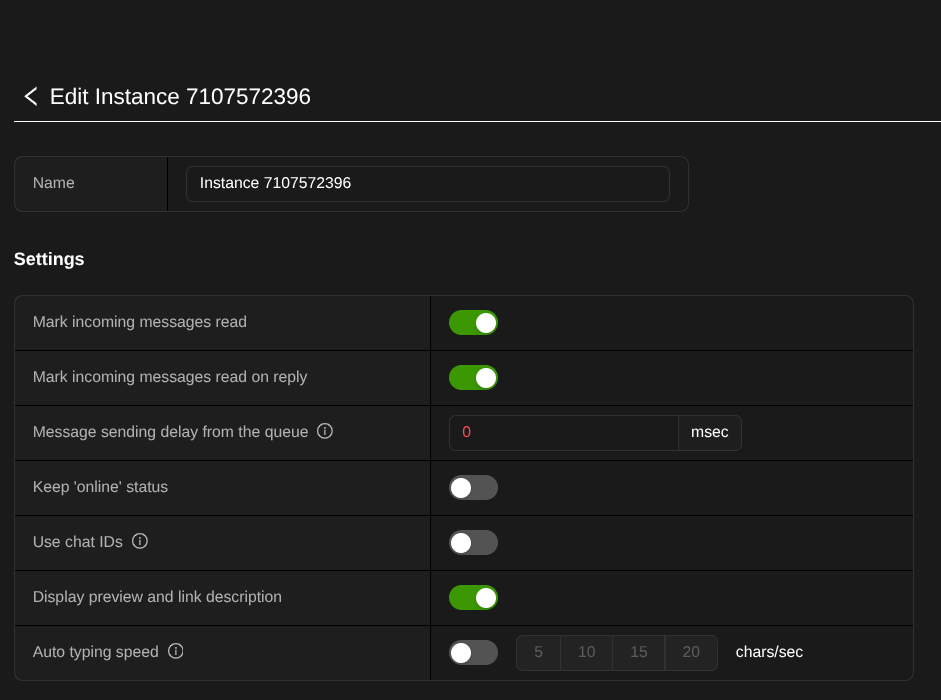
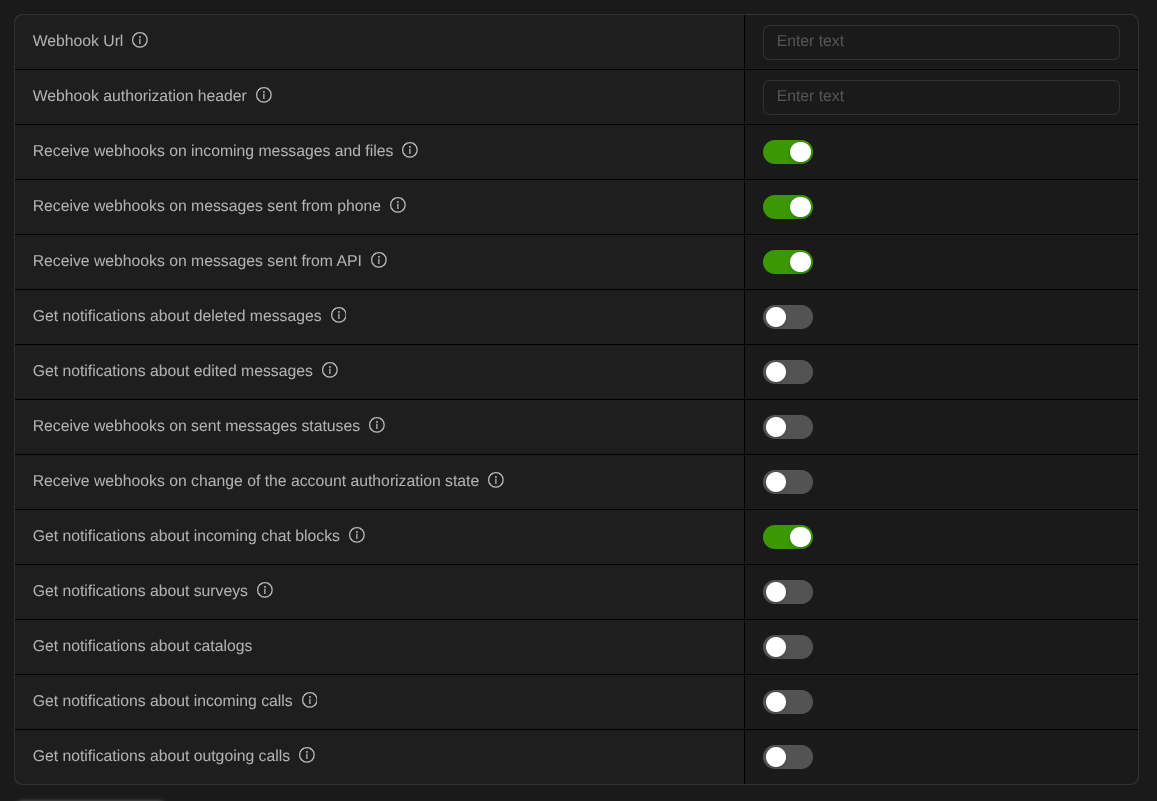
Connect an Anima to Telegram
This guide is for someone who wants an Anima to send and receive Telegram messages through the existing QUI comms bridge.
What You Need
- A Telegram account.
- Access to the Anima or ThinkThing workspace where the Telegram node is configured.
- The Anima you want Telegram to speak through.
- A bot token from Telegram's official
@BotFather.
Keep the bot token private. Anyone with the token can control that Telegram bot.
Quick Setup
1. Create the Telegram bot
- Open Telegram.
- Search for
@BotFather. - Send
/newbot. - Choose a display name, for example
Erik Anima. - Choose a username that ends in
bot, for exampleErikAnimaBot. - Copy the bot token BotFather gives you.
Telegram usernames are used in t.me links, so keep the bot username readable and specific.
2. Add Telegram to the Anima flow
- Open the builder or workspace that contains your Anima.
- Add or open a Telegram comms node.
- Connect the Anima to the Telegram node.
- Fill the Telegram fields:
Bot Username: the username from BotFather, without or with@.Bot Token: the token from BotFather.Default Chat ID: leave blank until the chat is discovered.Allowed Chat IDs: leave blank until the chat is discovered, or fill only the chat IDs you want this Anima to use.
The current Telegram node can generate a one-click start link from the bot username.
3. Start the bot from Telegram
- Open that link in Telegram.
- Press
Start, or send/start. - Send one normal test message, for example
hello.
In the Telegram node, copy the generated start link. It looks like:
https://t.me/<bot_username>?start=qui_thinkthing
https://t.me/<ErikQuiBot>?start=qui_thinkthing
The test message gives the system a recent Telegram update it can discover.
4. Fetch and select the chat
- Return to the Telegram node.
- Click
Fetch Chats. - Select the discovered chat from
Known Chats. - Confirm that the node filled:
Default Chat IDAllowed Chat IDs
- Save the graph or Anima flow.
If no chat appears, send /start and one ordinary message to the bot, then fetch again.
5. Send a test message
Use a small test first:
Send "Telegram is connected" to the Telegram chat.
After the outbound message works, reply to the bot in Telegram and confirm the reply appears in the relevant String or flow.
Groups and Channels
For a private one-to-one chat, the user only needs to open the bot and send /start.
For a group:
- Add the bot to the group.
- Send a message that the bot can see.
- Fetch chats again in the Telegram node.
- Select the group chat ID.
Telegram bots run in group privacy mode by default. In that mode, a bot sees commands, replies to the bot, and a limited set of relevant messages. If the Anima must read every group message, change this in BotFather with /setprivacy, then remove and re-add the bot to the group. Only disable privacy mode when the group expects the bot to read general chat traffic.
For a channel, add the bot to the channel with the permissions it needs. Telegram channel posts use the channel chat ID as the target.
How Receiving Works
QUI currently supports Telegram inbound messages through Thalamus. The user-facing setup path is:
- The Telegram node stores the bot token and selected chat ID.
- ThinkThing syncs the resolved Telegram runtime config to Thalamus.
- Thalamus polls Telegram with
getUpdates. - Incoming Telegram updates are normalized as channel messages.
- Messages are stored in Memory and broadcast to Strings.
- Explicit downstream consumers, such as a ThinkThing comms flow or an Anima channel trigger, decide whether to answer.
Thalamus does not auto-reply on its own. An Anima replies only when the flow or trigger tells it to.
Optional Webhook Deployment
Most local or builder-driven setups should use the normal polling path above. Use webhooks only when you have a public HTTPS endpoint for Thalamus.
For webhook mode:
Register the webhook with Telegram:
curl "https://api.telegram.org/bot<bot_token>/setWebhook?url=https://<your-domain>/api/v1/channel/telegram&secret_token=<random-secret>"
Expose this Thalamus route over HTTPS:
POST /api/v1/channel/telegram
Set a server-side secret in the Thalamus environment:
THALAMUS_TELEGRAM_WEBHOOK_SECRET=<random-secret>
Telegram will send the secret back in the X-Telegram-Bot-Api-Secret-Token header. Thalamus rejects Telegram webhook requests if the secret is missing or wrong.
Do not use getUpdates polling and webhooks at the same time. Telegram only allows one active receive mode for a bot.
Troubleshooting
BotFather token rejected
Copy the token again from BotFather. It should look like a numeric bot ID, a colon, and a long secret string. Do not include extra spaces.
Fetch Chats shows no chats
Open the generated t.me link, press Start, and send a normal message. Then click Fetch Chats again. If webhook mode was previously configured, remove the webhook or switch the runtime back to polling.
The Anima can send but does not receive replies
Check that the Telegram node has a Default Chat ID, that the chat ID is included in Allowed Chat IDs, and that the graph or channel trigger is active. Thalamus stores inbound messages but does not decide to answer by itself.
Group messages are missing
This is usually Telegram privacy mode. In privacy mode, the bot sees commands, replies, service messages, private chats, and channel messages, but not every ordinary group message. Use /setprivacy in BotFather only if the group wants broad bot visibility.
Webhook setup works but polling does not
Delete the Telegram webhook before using polling:
curl "https://api.telegram.org/bot<bot_token>/deleteWebhook"
Webhook receives nothing
Telegram webhooks require a valid HTTPS endpoint. Telegram's public Bot API webhook ports are 443, 80, 88, and 8443. Check getWebhookInfo for the last delivery error.
curl "https://api.telegram.org/bot<bot_token>/getWebhookInfo"
Environment Variable Summary
Use this as a quick checklist when wiring integrations into the MCP Gateway.
# Slack
SLACK_TOKEN=xoxb-...
SLACK_APP_TOKEN=xapp-... # optional; only required for Socket Mode

# Notion
NOTION_API_KEY=ntn_xxx...

# Discord
DISCORD_BOT_TOKEN=your-bot-token-here

# Brave Search
BRAVE_API_KEY=your_api_key_here
Google Calendar uses a downloaded service account JSON file rather than a simple API key. Store that JSON securely and configure the calendar connector according to the MCP runtime's expected path or secret-loading mechanism.
Final Verification Checklist
Before marking an integration as complete, verify the following:
Google OAuth
- OAuth client exists in Google Cloud.
- Redirect URI matches production routing.
- OAuth consent screen is configured.
googleOAuthEnabledis enabled in Mothership admin./api/v1/auth/google/loginreturns a 302 redirect.- Browser login flow completes successfully.
GitHub
- Classic PAT exists.
- Required scopes are selected.
- Expiration is set appropriately.
- Token is stored securely.
Slack
- App is installed to the test workspace.
- Required bot scopes are configured.
- App has been reinstalled after any scope changes.
SLACK_TOKENis configured.- Bot has been invited to test channels.
slack_list_channelsand/orslack_post_messageworks.
Notion
- Internal integration exists.
- Required capabilities are enabled.
NOTION_API_KEYis configured.- Pages/databases are explicitly shared with the integration.
notion_searchreturns accessible pages/databases.
Discord
- Bot exists.
- Required intents are enabled.
- Bot is invited to the server.
- Required permissions are granted.
DISCORD_BOT_TOKENis configured.discord_list_guildsworks.discord_send_messageworks for the test channel.
Google Calendar
- Google Calendar API is enabled.
- Service account exists.
- JSON key has been downloaded and stored securely.
- Calendar has been shared with the service account.
- Required calendar permissions are granted.
Brave Search
- Brave Search API key exists.
BRAVE_API_KEYis configured.- MCP process has been restarted.
- Brave search returns results.
WhatsApp / GreenAPI
- GreenAPI instance is connected.
- Test message has been sent.
chatIdhas been copied from the GreenAPI payload.- WhatsApp node
Default Chat IDis set correctly.
Check Telegram / BotFather
- Telegram bot has been created with @BotFather.
- Bot token has been copied from BotFather.
- Bot username is set in the Telegram node.
- User has opened the bot link or searched the bot in Telegram.
- User has sent /start to the bot.
- A test message has been sent to the bot.
- Fetch Chats has been clicked in the Telegram node.
- Telegram chat_id has been selected or copied from the fetched chat.
- Telegram node Default Chat ID is set correctly.
- Telegram node Allowed Chat IDs includes that chat ID, if the allowlist is
being used.
